Connecting DATEV with n8n: automatically archive Outlook attachments in DATEV DMS
2026-02-27
A practical technical guide: how an n8n workflow processes Outlook attachments, matches them to a DATEV client, archives them in DATEV DMS, and notifies Slack.
n8n is an obvious choice for many tax firms, TaxTech providers, and IT partners: process emails, validate data, call APIs, send notifications, build workflows.
With DATEV, however, things get more specific quickly.
DATEV is not simply another SaaS endpoint with a public REST API for everything. Depending on the use case, data lives in DATEV Online or in the DATEV desktop environment - there, for example, in DATEV DMS, accounting, or master data. For many firm workflows, the difficult part is therefore not the n8n logic, but controlled access to the right DATEV environment.
In this article, we look at a concrete n8n workflow:
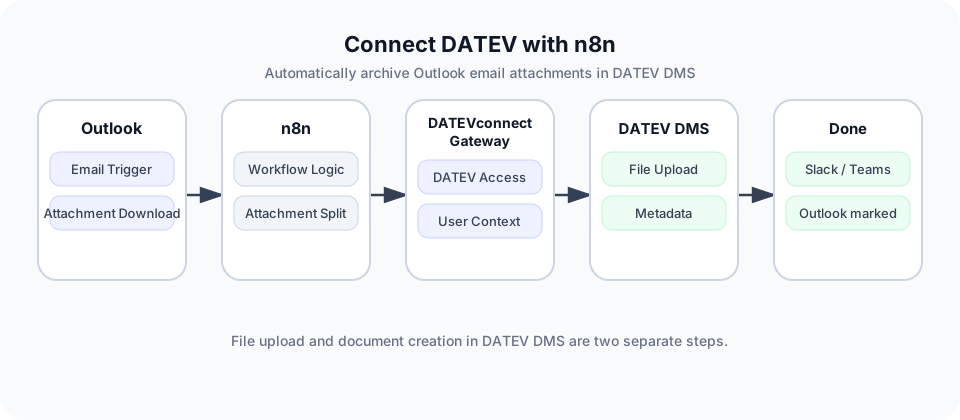
Outlook email arrives → relevant attachments are filtered → one DATEV client is matched clearly → the file is uploaded to DATEV DMS → the document is created with metadata → Outlook is marked as archived and moved → Slack receives a technical success notification.
This example is based on an n8n workflow using Klardaten DATEVconnect nodes: Archive Outlook email attachments to DATEV DMS with Slack notifications
Who is this article for?
This article is aimed at:
- Developers and IT teams at tax firms building workflow automations
- TaxTech providers integrating DATEV functionality into their products
- IT partners managing DATEV environments
- Technical product teams and CTOs building DATEV workflows for production
- n8n users looking to connect n8n with DATEV DMS
The article is intentionally technical. Not a step-by-step tutorial for n8n beginners, but concrete enough to understand how the workflow is structured and where the real production pitfalls lie.
The use case: automatically archive email attachments in DATEV DMS
Many tax firms still receive documents by email:
- Contracts
- Tax assessments
- Reports
- Payroll documents
- Bank documents
- PDF attachments from clients
- Scans from departments
- Exported reports from third-party systems
Manually, the process often looks like this:
- Open email
- Download attachment
- Search for client in DATEV
- Open DATEV DMS
- Archive document
- Set document type, period, description, and other fields
- Mark or move email
- Notify colleagues
This is not a complex thought process. It is repeatable work. That is exactly what n8n is suited for.
But: production DATEV DMS automation is more than "uploading a PDF". The workflow needs to know which client the document belongs to, which attachments should actually be archived, which metadata should be set, and under which DATEV user context the access takes place.
Workflow architecture
The example workflow involves these systems:
Microsoft Outlook
      ↓
n8n
      ↓
Klardaten DATEVconnect Nodes
      ↓
Klardaten DATEVconnect Gateway
      ↓
DATEV DMS
      ↓
Outlook / Slack
Microsoft Outlook
↓
n8n
↓
Klardaten DATEVconnect Nodes
↓
Klardaten DATEVconnect Gateway
↓
DATEV DMS
↓
Outlook / SlackThe roles are clearly separated:
- Outlook provides the email and attachments.
- n8n controls the workflow logic.
- Klardaten DATEVconnect Nodes encapsulate the DATEVconnect calls within n8n.
- DATEVconnect Gateway provides access to DATEVconnect.
- DATEV DMS stores the file and document entry.
- Outlook is updated at the end so the email is not processed again.
- Slack optionally reports the technical success.
Workflow overview
The workflow is called:
Archive Outlook email attachments to DATEV DMS with Slack notificationsArchive Outlook email attachments to DATEV DMS with Slack notificationsThe template is available directly on n8n.io: Archive Outlook email attachments to DATEV DMS with Slack notifications
The JSON contains 23 nodes: six sticky notes for documentation and 17 execution nodes.
Functionally, the workflow does this:
- Outlook triggers only for emails with attachments that are not already marked as archived or requiring review.
- A configuration node sets categories and DATEV DMS defaults.
- A demo code node derives a possible client hint from the subject line.
- DATEV master data is searched using this filter.
- Only exactly one match may continue automatically.
- No match or multiple matches lead to the Outlook category
DMS_REVIEW_REQUIRED. - Attachments are split into individual items and filtered.
- Only archiveable files are uploaded to DATEV DMS.
- The current DATEV user is retrieved.
- File, client, user, and DMS configuration are combined.
- A DMS document entry is created for each file.
- Only after successful DATEV processing is the Outlook email marked as
DMS_ARCHIVEDand moved to the archive folder. - Slack receives a minimal success message with document count and n8n execution ID.
The key execution nodes:
| Node | Type | Task |
|---|---|---|
Outlook - New email with attachments |
Microsoft Outlook Trigger | Loads new Outlook emails with attachments and excludes already handled categories |
Template - Configure variables |
Set Node | Centralizes categories, DMS metadata, and demo matching defaults |
Demo - Configure processing |
Code Node | Creates email context, DMS configuration, and a demo client filter |
DATEV - Look up demo client |
Klardaten DATEVconnect Master Data | Searches DATEV clients using the demo filter |
Demo - Evaluate client match |
Code Node | Evaluates whether zero, one, or multiple clients were found |
Demo - Exactly one client? |
IF Node | Lets only clear matches continue automatically |
Attachments - Split and filter documents |
Code Node | Converts attachments into individual items and filters irrelevant files |
Attachments - Has archiveable document? |
IF Node | Separates archiveable attachments from review cases |
DATEV DMS - Upload file |
Klardaten DATEVconnect Document Management | Uploads the binary file as a document file |
DATEV - Get current user |
Klardaten DATEVconnect IAM | Retrieves the current DATEV user |
DATEV DMS - Combine upload context |
Merge Node | Combines user, upload, and attachment context |
DATEV DMS - Create document |
Klardaten DATEVconnect Document Management | Creates the DMS document entry |
Archive - Summarize successful DMS archive |
Code Node | Summarizes the successful archive for Outlook and Slack |
Outlook - Mark archived |
Microsoft Outlook Node | Sets DMS_ARCHIVED and marks the email as read |
Outlook - Move to archive folder |
Microsoft Outlook Node | Moves the email to the archive folder |
Slack - Notify archive success |
Slack Node | Sends a privacy-minimal success message |
Outlook - Mark review required |
Microsoft Outlook Node | Marks unclear cases with DMS_REVIEW_REQUIRED |
Step 1: Outlook trigger
The workflow starts with a Microsoft Outlook trigger:
{
  "type": "n8n-nodes-base.microsoftOutlookTrigger",
  "pollTimes": {
    "item": [
      {
        "mode": "everyMinute"
      }
    ]
  },
  "filters": {
    "custom": "contains(subject,'GmbH') and not(categories/any(c:c eq 'DMS_ARCHIVED')) and not(categories/any(c:c eq 'DMS_REVIEW_REQUIRED'))",
    "hasAttachments": true
  },
  "options": {
    "attachmentsPrefix": "attachment_",
    "downloadAttachments": true
  }
}
{
"type": "n8n-nodes-base.microsoftOutlookTrigger",
"pollTimes": {
"item": [
{
"mode": "everyMinute"
}
]
},
"filters": {
"custom": "contains(subject,'GmbH') and not(categories/any(c:c eq 'DMS_ARCHIVED')) and not(categories/any(c:c eq 'DMS_REVIEW_REQUIRED'))",
"hasAttachments": true
},
"options": {
"attachmentsPrefix": "attachment_",
"downloadAttachments": true
}
}Three points matter.
First:
"hasAttachments": true"hasAttachments": trueThe trigger only fetches emails with attachments. This is cleaner than loading every email and discarding most of them later.
Second:
"downloadAttachments": true"downloadAttachments": trueThis causes n8n to download the attachments directly as binary data.
Third:
"not(categories/any(c:c eq 'DMS_ARCHIVED'))"
"not(categories/any(c:c eq 'DMS_REVIEW_REQUIRED'))""not(categories/any(c:c eq 'DMS_ARCHIVED'))"
"not(categories/any(c:c eq 'DMS_REVIEW_REQUIRED'))"Emails already archived or marked for manual review are not processed again. This is a first layer of duplicate protection.
The expression:
contains(subject,'GmbH')contains(subject,'GmbH')is demo logic. For real firm workflows, replace this part with a business-appropriate selection: dedicated Outlook folder, shared mailbox, category, sender rule, subject convention, or another intake channel.
Step 2: Centralize configuration
The node Template - Configure variables centralizes key workflow values so categories and base DMS data can be maintained in one place.
The key values are:
templateConfig.clientSubjectHintLegalForms = gmbh,ug,ag,kg,ohg,gbr,e.k.
templateConfig.clientFilterFallback = status eq active
templateConfig.reviewCategory = DMS_REVIEW_REQUIRED
templateConfig.archivedCategory = DMS_ARCHIVED
templateConfig.dms.classId = 1
templateConfig.dms.className = Dokument
templateConfig.dms.domainId = 1
templateConfig.dms.domainName = Mandanten
templateConfig.dms.folderId = 2
templateConfig.dms.folderName = <Keine Angabe>
templateConfig.clientSubjectHintLegalForms = gmbh,ug,ag,kg,ohg,gbr,e.k.
templateConfig.clientFilterFallback = status eq active
templateConfig.reviewCategory = DMS_REVIEW_REQUIRED
templateConfig.archivedCategory = DMS_ARCHIVED
templateConfig.dms.classId = 1
templateConfig.dms.className = Dokument
templateConfig.dms.domainId = 1
templateConfig.dms.domainName = Mandanten
templateConfig.dms.folderId = 2
templateConfig.dms.folderName = <Keine Angabe>For production, answer at least these questions:
- Which Outlook category means "archived"?
- Which Outlook category means "manual review"?
- Which DMS class is used for the documents?
- Which domain and folder are correct?
- Should the period come from receipt date, document date, subject, attachment, or another signal?
Step 3: Create a demo client filter
The node Demo - Configure processing prepares the context for processing.
It takes the Outlook email, reads the template configuration, and tries to detect a company name from the subject line. It uses configured legal forms such as GmbH, UG, AG, KG, OHG, GbR, or e.K..
The core part is:
const datevClientFilter = companyNameFromSubject
  ? `status eq active and name eq '${escapeODataString(companyNameFromSubject)}'`
  : fallbackClientFilter;
const datevClientFilter = companyNameFromSubject
? `status eq active and name eq '${escapeODataString(companyNameFromSubject)}'`
: fallbackClientFilter;If the demo code finds a plausible company name in the subject, it builds a DATEV master data filter for that name. If no hint is found, the workflow falls back to:
status eq activestatus eq activeImportant: this is intentionally only demo matching.
In production workflows, this node is the part that almost always needs to be replaced. The correct client must not be guessed loosely. A DMS document archived under the wrong client is not a small technical defect, but a business-critical error.
Production client matching
A production workflow should derive the client from reliable signals. There are several strategies.
1. Matching by sender address
Example:
invoice@client-gmbh.de → Client GmbHinvoice@client-gmbh.de → Client GmbHThis works well when clients use fixed sender addresses.
Problem: many documents come from third parties, such as banks, insurers, authorities, or portals. In those cases, the sender address is not the client.
2. Matching by sender domain
Example:
*@client-gmbh.de → Client GmbH*@client-gmbh.de → Client GmbHThis is more robust than individual email addresses, but still limited.
Problem: tax advisers receive many documents from domains that cannot be clearly attributed to a single client.
3. Matching by subject line
Example:
[12345] Annual financial statement 2026[12345] Annual financial statement 2026or:
Client 10042 - tax assessment reviewClient 10042 - tax assessment reviewThis works well when internal naming conventions are followed.
Problem: free-text subject lines are error-prone.
4. Matching via dedicated Outlook folders
Example:
Inbox/DMS/Client 10042Inbox/DMS/Client 10042In this case, the folder itself is already the assignment.
This is often pragmatic, especially for firms that prefer to start semi-automatically.
5. Matching via mapping table
A mapping table might contain:
| Rule | DATEV client |
|---|---|
*@client-gmbh.de |
Client GmbH |
bank@example.com + IBAN DE... |
Client GmbH |
Subject contains Cust No 4711 |
Client GmbH |
This table can live in Postgres, Airtable, Google Sheets, an internal system, or a small dedicated database.
6. Review queue for uncertain assignments
Not every case should be decided automatically.
A clean production workflow usually has an intermediate state:
Client found clearly → archive automatically in DATEV DMS
Client unclear → review queue
Client not found → manual review
Client found clearly → archive automatically in DATEV DMS
Client unclear → review queue
Client not found → manual reviewThe template already follows this idea: only one clear match continues automatically. Everything else receives a review category in Outlook.
Step 4: Look up and evaluate the DATEV client
The node DATEV - Look up demo client uses the Klardaten DATEVconnect Master Data node:
{
  "top": 100,
  "filter": "={{ $json.demoConfig.datevClientFilter }}"
}
{
"top": 100,
"filter": "={{ $json.demoConfig.datevClientFilter }}"
}The increase to top: 100 matters. The workflow does not just take the first result. It needs to know whether the result is unambiguous.
After that, Demo - Evaluate client match evaluates the result list:
const status = uniqueClients.length === 1
  ? 'exact'
  : uniqueClients.length === 0
    ? 'not_found'
    : 'multiple';
const status = uniqueClients.length === 1
? 'exact'
: uniqueClients.length === 0
? 'not_found'
: 'multiple';The workflow therefore distinguishes three states:
| Status | Meaning | Result |
|---|---|---|
exact |
exactly one DATEV client found | automatic archive |
not_found |
no DATEV client found | Outlook is marked for review |
multiple |
multiple DATEV clients found | Outlook is marked for review |
The IF node Demo - Exactly one client? lets only exact enter the DMS branch.
This is the key business rule: the workflow prioritizes correct assignment over blind automation.
Step 5: Split and filter attachments
The node Attachments - Split and filter documents takes the binary attachments from the Outlook email and creates individual n8n items.
n8n stores multiple attachments from an email as multiple binary fields, for example:
attachment_0
attachment_1
attachment_2
attachment_0
attachment_1
attachment_2The workflow maps every archiveable attachment to the binary key data, because the later DATEV upload node expects that key:
binary: {
  data: attachment.binary,
}binary: {
data: attachment.binary,
}An email with three archiveable attachments therefore produces three items:
Item 1 → binary.data = attachment_0
Item 2 → binary.data = attachment_1
Item 3 → binary.data = attachment_2
Item 1 → binary.data = attachment_0
Item 2 → binary.data = attachment_1
Item 3 → binary.data = attachment_2The node also filters out typical non-documents:
- calendar files such as
.ics - contact files such as
.vcf - inline attachments
- small signature images
- typical logo, banner, or social media images
If no archiveable attachment remains after filtering, the node does not create a DMS upload item. It creates a review case:
No archiveable document attachments were found after filtering.No archiveable document attachments were found after filtering.This is functionally important: an email can technically have attachments and still contain no document that belongs in DMS.
Step 6: Determine the DMS period
The attachment node also sets a DMS period:
const receivedAt = evaluated.email?.receivedAt ?? new Date().toISOString();
const receivedDate = new Date(receivedAt);
const periodDate = Number.isNaN(receivedDate.getTime()) ? new Date() : receivedDate;
const receivedAt = evaluated.email?.receivedAt ?? new Date().toISOString();
const receivedDate = new Date(receivedAt);
const periodDate = Number.isNaN(receivedDate.getTime()) ? new Date() : receivedDate;The output then contains:
{
  "dmsPeriod": {
    "year": 2026,
    "month": 2,
    "source": "email_received_date",
    "receivedAt": "...",
    "processedAt": "..."
  }
}
{
"dmsPeriod": {
"year": 2026,
"month": 2,
"source": "email_received_date",
"receivedAt": "...",
"processedAt": "..."
}
}The template therefore uses the email receipt date as the default for year and month. If the date cannot be parsed, it falls back to the processing date.
For production, check whether this is correct. For some documents, the receipt date is useful. For others, the document date, service period, payroll month, or fiscal year matters more.
Step 7: Upload document file to DATEV DMS
The node DATEV DMS - Upload file uses the Klardaten DATEVconnect Document Management node:
{
  "resource": "documentFile",
  "operation": "upload",
  "binaryData": "data"
}
{
"resource": "documentFile",
"operation": "upload",
"binaryData": "data"
}This step uploads the actual file.
Important: this is not yet the full document entry in DATEV DMS. The upload first creates a file resource that is referenced by the document later.
Step 8: Retrieve the current DATEV user
Running in parallel, the node DATEV - Get current user:
{
  "type": "@klardaten/n8n-nodes-datevconnect.identityAndAccessManagement",
  "parameters": {
    "resource": "currentUser"
  }
}
{
"type": "@klardaten/n8n-nodes-datevconnect.identityAndAccessManagement",
"parameters": {
"resource": "currentUser"
}
}The workflow uses the user later in the document:
user: {
  id: $('DATEV - Get current user').item.json.id
}user: {
id: $('DATEV - Get current user').item.json.id
}This matters because DMS documents consist of more than just a file and a client. They also carry context information: user, domain, folder, period, and structure.
For production setups, these questions need clear answers:
- Under which DATEV context does the access run?
- What permissions does this user have?
- Is this a technical service user or an actual user context?
- Which documents may this context view or create?
- How does this fit the firm's permission model?
In DMS, user context is not a detail. It determines visibility, access, and audit trail.
Step 9: Combine data via Merge node
The workflow uses DATEV DMS - Combine upload context:
{
  "mode": "combine",
  "combineBy": "combineByPosition",
  "numberInputs": 3
}
{
"mode": "combine",
"combineBy": "combineByPosition",
"numberInputs": 3
}Three inputs are combined:
- Current DATEV user
- Attachment context
- Uploaded document file ID
After that, the DMS create node has everything it needs:
- Binary metadata from the attachment
- DATEV client from the match evaluation
- DATEV user from IAM
- DMS defaults from the template configuration
- Document file ID from the upload
Risk with combineByPosition
combineByPosition is simple, but you need to understand what it does.
The merge combines items based on their position in the item list. This is fine as long as all inputs reliably deliver the same number and order of items.
With multiple attachments, test this thoroughly in production:
- An email with one attachment
- An email with multiple attachments
- Multiple emails in sequence
- Upload failure for one of several attachments
- Empty or corrupt attachments
For critical workflows, an explicit item ID or a clean loop is sometimes more robust than a position-based merge.
Step 10: Create the document in DATEV DMS
The most important DMS node is DATEV DMS - Create document.
It uses the Klardaten Document Management node again:
{
  "operation": "create"
}
{
"operation": "create"
}Conceptually, the document is created with this payload:
{
  extension: $json.attachment.extension || '',
  description: `Email attachment: ${$json.attachment.fileName || 'Unnamed file'}`,
  class: {
    name: $json.demoConfig.dms.className,
    id: $json.demoConfig.dms.classId,
  },
  correspondence_partner_guid: $json.client.id,
  user: {
    id: $('DATEV - Get current user').item.json.id,
  },
  domain: {
    name: $json.demoConfig.dms.domainName,
    id: $json.demoConfig.dms.domainId,
  },
  folder: {
    id: $json.demoConfig.dms.folderId,
    name: $json.demoConfig.dms.folderName,
  },
  year: $json.dmsPeriod.year,
  month: $json.dmsPeriod.month,
  structure_items: [
    {
      counter: 1,
      type: 1,
      document_file_id: $('DATEV DMS - Upload file').item.json.id,
      name: $json.attachment.fileName || 'Unnamed file',
      parent_counter: 0,
      creation_date: $json.dmsPeriod.processedAt,
      last_modification_date: $json.dmsPeriod.processedAt,
    },
  ],
}
{
extension: $json.attachment.extension || '',
description: `Email attachment: ${$json.attachment.fileName || 'Unnamed file'}`,
class: {
name: $json.demoConfig.dms.className,
id: $json.demoConfig.dms.classId,
},
correspondence_partner_guid: $json.client.id,
user: {
id: $('DATEV - Get current user').item.json.id,
},
domain: {
name: $json.demoConfig.dms.domainName,
id: $json.demoConfig.dms.domainId,
},
folder: {
id: $json.demoConfig.dms.folderId,
name: $json.demoConfig.dms.folderName,
},
year: $json.dmsPeriod.year,
month: $json.dmsPeriod.month,
structure_items: [
{
counter: 1,
type: 1,
document_file_id: $('DATEV DMS - Upload file').item.json.id,
name: $json.attachment.fileName || 'Unnamed file',
parent_counter: 0,
creation_date: $json.dmsPeriod.processedAt,
last_modification_date: $json.dmsPeriod.processedAt,
},
],
}The key points:
correspondence_partner_guidcomes from the clearly matched DATEV client.user.idcomes from the current DATEV user.class,domain, andfoldercome from the configuration node.yearandmonthdefault to the email receipt date.document_file_idreferences the uploaded file.
Without that last reference, the document entry would not be connected to the uploaded file.
File content and document metadata are two different things
This is important in DATEV DMS.
The workflow performs two functionally distinct steps:
1. Upload file
PDF, DOCX, XLSX, or other attachmentPDF, DOCX, XLSX, or other attachmentThis step produces a document_file_id.
2. Create document entry
The document entry contains metadata:
- File extension
- Description
- Document class
- Client reference
- User
- Domain
- Folder
- Year
- Month
- Structure information
- Reference to the uploaded file
Only the document entry turns the file into a professionally classified DMS document.
Step 11: Summarize successful archive
The node Archive - Summarize successful DMS archive collects the successfully created documents and produces a compact completion context:
archive: {
  category: first.demoConfig?.archivedCategory ?? 'DMS_ARCHIVED',
  documentsCreated: createdDocuments.length,
  attachmentsProcessed: attachments.length,
  completedAt: new Date().toISOString(),
}archive: {
category: first.demoConfig?.archivedCategory ?? 'DMS_ARCHIVED',
documentsCreated: createdDocuments.length,
attachmentsProcessed: attachments.length,
completedAt: new Date().toISOString(),
}This node is useful because Outlook and Slack no longer need to operate once per attachment. They receive a summarized view of the email.
Step 12: Mark and move the Outlook email
After successful DATEV processing, the workflow updates Outlook in two steps.
First, Outlook - Mark archived sets the category and marks the email as read:
{
  "operation": "update",
  "updateFields": {
    "categories": ["DMS_ARCHIVED"],
    "isRead": true
  }
}
{
"operation": "update",
"updateFields": {
"categories": ["DMS_ARCHIVED"],
"isRead": true
}
}Then Outlook - Move to archive folder moves the email:
{
  "operation": "move",
  "folderId": "archive"
}
{
"operation": "move",
"folderId": "archive"
}The email is treated as completed only after successful DATEV processing.
For production, define:
- whether the email should remain in the inbox or be moved
- which archive folder should be used
- whether category, folder, or both are wanted
- what should happen with partially successful multi-attachment emails
- whether the original email should also be archived as
.emlor PDF in DMS
Step 13: Slack notification
The Slack node sends an intentionally minimal message:
DMS archiving successful. Documents created: {{ documentsCreated }}. Execution ID: {{ $execution.id }}.DMS archiving successful. Documents created: {{ documentsCreated }}. Execution ID: {{ $execution.id }}.For tax firm environments, this keeps client names, subject lines, and file names out of chat notifications.
For production Slack or Teams notifications:
- avoid client names unless they are strictly necessary
- avoid subject lines when they may contain confidential content
- avoid file names when they may reveal clients or matters
- prefer an execution ID or a link to an internal permission-protected system
Slack also should not be the leading system for errors and review. Production cases need a review process, an internal ticket, or a controlled task list.
Review cases in the workflow
The node Outlook - Mark review required is reached in two cases:
- The client could not be matched exactly.
- The email had attachments, but no archiveable document remained after filtering.
The node sets:
{
  "categories": ["DMS_REVIEW_REQUIRED"]
}
{
"categories": ["DMS_REVIEW_REQUIRED"]
}This is pragmatic: the email does not disappear, is not falsely marked as archived, and can be reviewed manually.
For a production review queue, an Outlook category alone is often not enough. A stronger pattern is:
Set review category
→ optionally move to review folder
→ create internal task
→ store review reason
→ process again after manual decision
Set review category
→ optionally move to review folder
→ create internal task
→ store review reason
→ process again after manual decisionWhat the workflow does well
The workflow shows several patterns that matter for production.
1. The trigger avoids repeats
It only processes emails with attachments and excludes emails with DMS_ARCHIVED or DMS_REVIEW_REQUIRED.
2. Configuration is visible
Categories and central DMS values live in Template - Configure variables.
3. Client matching is not blind
The workflow does not simply take the first active client. It evaluates whether exactly one match was found.
4. Review cases are built in
No match, multiple matches, and empty attachment results do not enter automatic archiving.
5. Attachments are processed individually
Multiple email attachments are converted into separate items. Each file can be uploaded to DATEV DMS and represented as its own document.
6. File upload and document creation are separate
This fits the DMS model: first the file is stored, then the business document entry is created.
7. Outlook is completed only after DATEV success
The email receives the archive status only after successful DMS processing.
8. Slack stays intentionally short
The notification contains only document count and execution ID. This reduces unnecessary confidential content in chat systems.
What needs to be adapted before going to production
The workflow is a good template, but not a finished firm standard process.
These points need production adaptation.
1. Replace client matching
The demo subject logic is a starting point, but not a reliable firm concept.
Production needs real assignment logic:
Analyze email
→ find possible client
→ check uniqueness
→ archive automatically only for clear matches
→ otherwise review queue
Analyze email
→ find possible client
→ check uniqueness
→ archive automatically only for clear matches
→ otherwise review queue2. Adapt DMS metadata to the firm's structure
These fields should not be copied blindly:
class
domain
folder
year
month
description
structure_items
class
domain
folder
year
month
description
structure_itemsProduction questions:
- Which document classes does the firm use?
- Which folder structure is correct?
- Which period should be set?
- Which mandatory fields exist?
- Which description helps later search?
- Should the email subject be copied?
- Should the sender address be stored?
- Should there be a reference to the original email?
3. Build duplicate detection
The trigger already excludes marked emails. That is useful, but it is not full idempotency.
Possible strategies:
- Store Outlook message ID
- Store attachment ID
- Store a file content hash
- Check client, file name, size, and receipt date
- Search for duplicates in DATEV DMS or in a separate table before upload
4. Add error paths
Production workflows need error handling.
At minimum:
- Upload failed
- Document creation failed
- Client not found
- Multiple clients found
- Attachment without file name
- Unsupported file type
- DATEVconnect unavailable
- OAuth credential expired
- Outlook update failed
- Slack or Teams unavailable
A production workflow should have an error channel:
Error → no archive marking → notification → manual reviewError → no archive marking → notification → manual review5. Build out the review queue
An Outlook category is a good start. Real processes often need more:
- responsible person or team
- review reason
- link to the original email
- suggested client and document type
- decision history
- restart after correction
6. Take data privacy and professional secrecy seriously
DATEV DMS workflows regularly process confidential data.
Therefore check:
- Which data is stored in n8n execution logs?
- Is binary data stored permanently?
- Who has access to n8n?
- Which data goes to Slack or Teams?
- Which data appears in error messages?
- How long are logs retained?
- Where does n8n run: cloud, own hosting, or service provider?
For tax firms, this is not a side issue. Email attachments may contain client, payroll, tax, and bank data.
n8n binary mode: why the setting matters
The workflow relies on downloaded Outlook attachments as binary data.
In n8n, binary data can be stored in the file system, in the database, or through other mechanisms depending on setup. This affects:
- Performance with large attachments
- Storage usage
- Backup behavior
- Data privacy
- Retention in execution logs
- Behavior across multiple workflow executions
For tests this is usually harmless. For production DATEV DMS workflows, check how n8n stores binary data and when it is deleted again.
DATEVconnect Gateway: why the workflow does not run directly "against DATEV"
The workflow uses Klardaten DATEVconnect nodes.
These nodes do not simply call a generic public DATEV endpoint on the internet. They work with DATEVconnect or a gateway that provides access to the DATEV environment.
This matters because many DATEV datasets live in the local or hosted DATEV desktop world. DATEV DMS is not a normal cloud DMS with a freely available REST API for every use case.
The typical architecture is:
n8n workflow
      ↓
Klardaten DATEVconnect node
      ↓
DATEVconnect Gateway
      ↓
DATEVconnect
      ↓
DATEV DMS
n8n workflow
↓
Klardaten DATEVconnect node
↓
DATEVconnect Gateway
↓
DATEVconnect
↓
DATEV DMSMore here: DATEVconnect Gateway
DATEV Online APIs vs. DATEVconnect
DATEV has different technical access paths.
For some use cases, DATEV Online APIs are relevant. For others, DATEVconnect or access to the DATEV desktop environment is required.
Broadly:
| Area | Typical access path |
|---|---|
| DATEV Online services | DATEV Online APIs |
| DATEV DMS in the DATEV environment | DATEVconnect / Gateway |
| Accounting and master data in desktop contexts | DATEVconnect / Gateway |
| Deeper extraction, reporting, BI | often customer-specific access |
For this workflow, DATEV DMS is the central system. That makes DATEVconnect or a gateway the relevant technical context.
Typical workflow extensions
1. Microsoft Teams instead of Slack
Many tax firms work with Microsoft 365. In that case, a Teams notification can be the natural notification channel.
The business recommendation stays the same: avoid unnecessary client data in chat systems.
2. Review queue for unclear cases
The workflow already sets DMS_REVIEW_REQUIRED. This can become a real process:
Review category detected
→ create task
→ team member selects client and document type
→ workflow archives after approval
Review category detected
→ create task
→ team member selects client and document type
→ workflow archives after approval3. Automatically detect document type
Attachments can be classified by name, sender, subject, content, or OCR result:
Payroll statement
Tax assessment
Contract
Incoming invoice
Bank document
Payroll statement
Tax assessment
Contract
Incoming invoice
Bank documentThen DMS class, folder, description, and period can be set more accurately.
4. Filter attachments more strictly
The template already filters signatures, inline images, calendar files, and contact files.
Production can add:
- allowed file types
- minimum size
- maximum size
- password protection detection
- separate ZIP handling
- image files only when scans are expected
5. Archive the original email as PDF or EML
For some processes, the attachment alone is not enough. It can make sense to archive the original email as well.
Then the email and its attachments should remain traceable as one case.
6. Duplicate detection
Before the DMS upload, check whether the same document has already been archived.
Possible keys:
Outlook message ID
Attachment ID
File hash
Client + file name + file size
Client + external document code
Outlook message ID
Attachment ID
File hash
Client + file name + file size
Client + external document codeExample: production-ready flow with review queue
A robust production flow could look like this:
1. Outlook email arrives in a defined DMS folder
2. Trigger downloads email with attachments
3. Workflow ignores already archived or review-required emails
4. Workflow filters technical attachments
5. Workflow finds client via mapping table
6. If exactly one client is found:
   6.1 Determine DMS metadata
   6.2 Run duplicate check
   6.3 Upload file to DATEV DMS
   6.4 Create document entry
   6.5 Set Outlook to DMS_ARCHIVED and move it
   6.6 Send technical success message
7. If no client or multiple clients are found:
   7.1 Create review task
   7.2 Set Outlook to DMS_REVIEW_REQUIRED
8. If DATEV fails:
   8.1 Do not mark Outlook as archived
   8.2 Notify error channel
   8.3 Retry or manual review
1. Outlook email arrives in a defined DMS folder
2. Trigger downloads email with attachments
3. Workflow ignores already archived or review-required emails
4. Workflow filters technical attachments
5. Workflow finds client via mapping table
6. If exactly one client is found:
6.1 Determine DMS metadata
6.2 Run duplicate check
6.3 Upload file to DATEV DMS
6.4 Create document entry
6.5 Set Outlook to DMS_ARCHIVED and move it
6.6 Send technical success message
7. If no client or multiple clients are found:
7.1 Create review task
7.2 Set Outlook to DMS_REVIEW_REQUIRED
8. If DATEV fails:
8.1 Do not mark Outlook as archived
8.2 Notify error channel
8.3 Retry or manual reviewThis is less spectacular than full automation, but much safer.
Typical errors in DATEV n8n workflows
Error 1: The workflow only processes one attachment
Many simple email workflows take only the first attachment. This is risky for firm mail because clients often send several documents in one email.
The template solves this by splitting attachments into individual items.
Error 2: Wrong client
This is the most critical error.
If the client is not clear, the workflow should not archive automatically. That is why the template has the review branch.
Error 3: DMS metadata is too generic
If everything lands as Dokument in <Keine Angabe>, DMS quickly becomes messy.
The template values must be adapted to the actual firm structure.
Error 4: Success is reported even though DATEV failed
Outlook should only be completed after successful DATEV upload and successful document creation.
The template sets the archive mark after DMS creation. In production, also handle error paths and partial failures carefully.
Error 5: No duplicate detection
Email triggers can run again. Users can remove categories. Workflows can be restarted manually.
Without idempotency, duplicate DMS documents appear quickly.
Error 6: n8n execution logs store too much data
With email attachments, logs and binary storage can contain confidential data.
Production setups must define which data n8n stores, who can access it, and when it is deleted.
When n8n is a good fit for DATEV workflows
n8n is a good fit when:
- the process is clearly rule-based
- intake systems such as Outlook, SharePoint, Teams, Slack, or internal tools are involved
- DATEV DMS or master data calls can be encapsulated through nodes
- technical teams can operate the workflow
- review processes are planned deliberately
- automation should be introduced step by step
Typical examples:
- Archive email attachments in DATEV DMS
- Fetch and classify documents from portals
- Trigger internal approvals
- Reconcile client master data
- Send technical status messages to IT or business teams
When n8n alone is not enough
n8n is a workflow tool. It does not automatically replace:
- a permission concept
- a DMS business concept
- a client matching strategy
- monitoring
- operational ownership
- data privacy review
- error and review processes
As requirements become more complex, additional components are often needed:
- Database for mapping and idempotency
- Internal review frontend
- Central logging and monitoring platform
- Documented operating processes
- Deeper DATEV integration
Build vs. gateway: build it yourself or use Klardaten?
You can build DATEVconnect integrations yourself. But that means:
- Understanding DATEVconnect
- Connecting local DATEV environments
- Handling authentication and user context correctly
- Handling errors
- Accounting for versions and updates
- Operating and monitoring the integration
- Maintaining n8n nodes or HTTP calls
For some teams, that makes sense.
For many tax firms, TaxTech providers, and IT partners, a gateway is more pragmatic. The n8n logic stays visible and adaptable, but every team does not need to solve DATEVconnect access from scratch.
Klardaten provides the DATEVconnect Gateway and matching n8n nodes for this.
More:
Setup checklist
For a working test, you need:
- n8n instance with community nodes
- installed Klardaten DATEVconnect nodes
- Microsoft Outlook OAuth2 credentials
- Klardaten DATEVconnect credentials
- reachable DATEVconnect Gateway
- access to DATEV DMS
- test client in DATEV
- test mailbox or test folder in Outlook
- defined DMS target fields
- optional Slack OAuth2 credentials
- selected Slack channel
- test files with realistic file types
For production, you also need:
- real client matching
- error channel
- retry strategy
- duplicate detection
- logging concept
- permission concept
- review process for unclear cases
- monitoring
- clear ownership between firm, IT partner, and software provider
FAQ
Can you connect DATEV directly with n8n?
Yes, but not like an arbitrary SaaS tool with a single public API for everything. For DATEV DMS workflows in a DATEV desktop or DATEVconnect environment, you need DATEVconnect access. The Klardaten DATEVconnect nodes encapsulate that access for n8n.
Can n8n automatically save Outlook attachments to DATEV DMS?
Yes. The workflow shows exactly that: Outlook triggers an email with attachments, n8n filters and processes the attachments, DATEV DMS stores the file and document entry, and Outlook is completed after successful processing.
What is the difference between file upload and document creation in DATEV DMS?
The file upload stores the binary file. Document creation creates the professional DMS entry, including client reference, description, class, folder, period, and a reference to the file.
Can the workflow handle multiple attachments?
Yes. The attachment code node converts all archiveable binary attachments from an email into individual n8n items. Each attachment can then be processed separately in DATEV DMS.
How is the correct DATEV client found?
In the template, through demo logic from the subject line and a DATEV master data search. In production, replace this logic with a mapping table, sender rules, folder logic, client numbers, or an internal system.
What happens if no client is found?
The workflow does not archive automatically. The Outlook email is marked with DMS_REVIEW_REQUIRED and must be reviewed manually.
What happens if multiple clients are found?
The workflow also does not archive automatically. Ambiguous matches are review cases.
What happens if only signature images or calendar files are attached?
The workflow filters those attachments out. If no archiveable document remains, the email is marked for review.
Can Slack be replaced by Microsoft Teams?
Yes. Slack is only the notification channel in the template. In Microsoft 365 environments, Teams may be the appropriate channel.
Should client names and subject lines be posted to Slack?
Only if this has been deliberately reviewed. In many cases, chat messages should stay technical and avoid writing confidential content to Slack or Teams.
Can I use Gmail instead of Outlook?
In principle, yes, but the workflow would need to be adapted. The trigger, binary attachment handling, and completion action are Outlook-specific.
Do I need DATEVconnect for this workflow?
For DATEV DMS workflows in a DATEV desktop or DATEVconnect environment, DATEVconnect is the relevant technical path. Whether DATEVconnect covers your specific case depends on the target module, the data required, and the environment.
Are DATEV Online APIs the same as DATEVconnect?
No. DATEV Online APIs and DATEVconnect address different technical contexts and use cases. For DATEV DMS in the DATEV environment, DATEVconnect or a gateway is relevant.
Can I use all DATEV data with n8n?
Not every DATEV data source is available through the same access path. What can be automated depends on the DATEV product, API coverage, permissions, user context, and technical environment.
Is the workflow production-ready?
It is a good template. For production, you typically still need real client matching, duplicate detection, an error workflow, monitoring, a review queue, data privacy review, and DMS metadata alignment.
What should I do when the DATEVconnect Gateway is not enough?
When DATEVconnect does not cover the required data or processes, alternative or customer-specific access paths need to be evaluated. Typical cases are deeper reporting, Power BI, controlling, or custom automations around DATEV desktop data.
Summary
n8n is well suited to connect Outlook, Slack or Teams, internal systems, and DATEV DMS processes.
The decisive point is not the raw upload. The decisive point is the professionally clean flow:
right email
→ right client
→ relevant attachments
→ right DMS metadata
→ DATEV document successfully created
→ complete Outlook only afterward
→ route unclear cases to review
right email
→ right client
→ relevant attachments
→ right DMS metadata
→ DATEV document successfully created
→ complete Outlook only afterward
→ route unclear cases to reviewThe workflow Archive Outlook email attachments to DATEV DMS with Slack notifications shows a good base pattern for this: trigger-level repeat protection, central configuration, clear client matching, attachment filtering, separate DATEV DMS steps, review category, and restrained Slack notification.
For production firm workflows, the main work is to add robust client matching, DMS metadata, error handling, duplicate detection, and a review process.
If you want to connect DATEV DMS, DATEVconnect, and n8n, the Klardaten DATEVconnect Gateway can provide the DATEVconnect side while n8n handles the workflow logic.
If the tax firm does not want to develop and operate its own n8n workflow, Klarvos is the separate path: a maintained solution for a specific tax-firm task with a traceable result for review.